In my previous post, I discussed the important must-know concepts of AKS. If you have not read it, I suggest you do.
Here we will go over how to deploy an AKS cluster and gain some hands-on experience.
Step 1: Access Azure Portal
Register and sign in to Azure web Portal. You will get the home page.
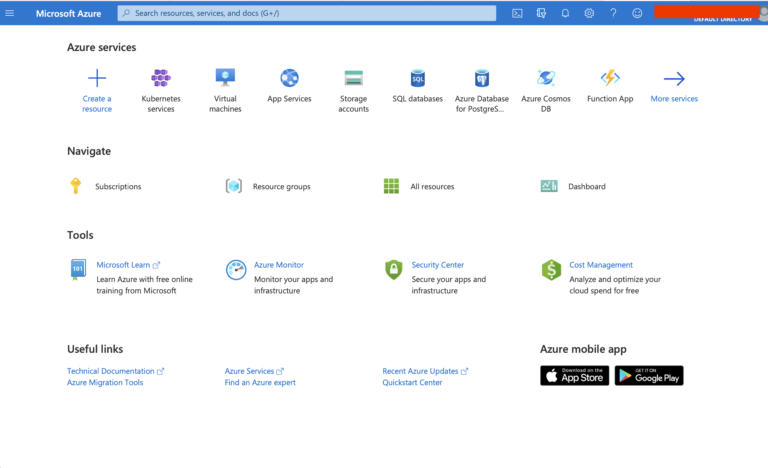
Select Kubernetes Services. If you do not see the Kubernetes Services icon, type AKS in the Search bar to get it.
Step 2: Create New Cluster
Since we do not have any clusters created yet, we get an empty listing here. Click Add -> Add Kubernetes Cluster to deploy a new AKS cluster.
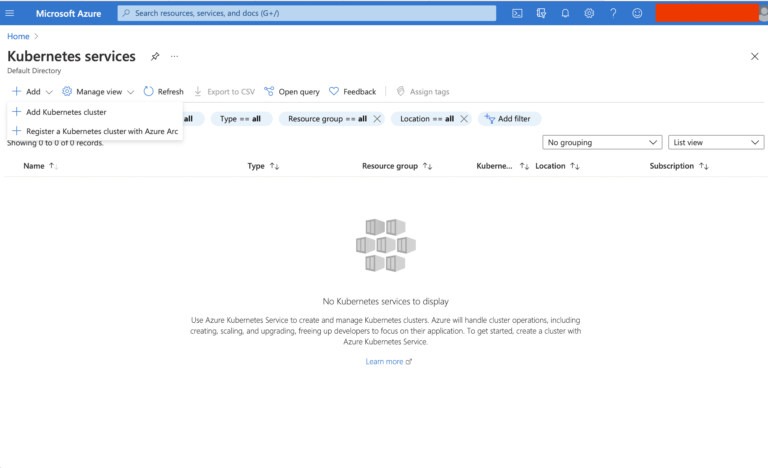
Step 3: Configure Basic Settings
Leave the default for Azure Subscription, and create a new Resource Group. These two parameters are used for billing purposes. Input a name for the Kubernetes cluster name and leave the defaults for other parameters. Optionally you can set the Node count as well.
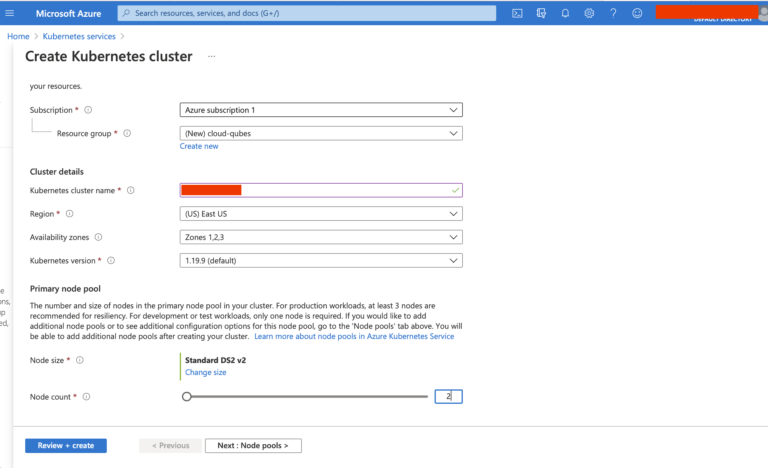
Click on Next: Node pools button at the bottom of the screen.
Step 4: Configure Node Pools
You can add more node pools to the cluster here. However, let's proceed with the default system node pool as we can add node pools later if required.
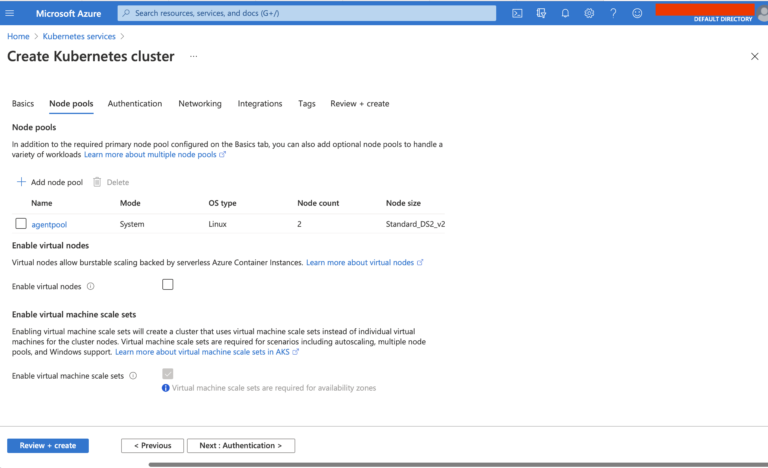
Leave all other parameters in their default values and click on Review + Create.
Step 5: Review and Create
Azure will validate the input parameters at this point. Since all our inputs are fine we get Validation passed notification.
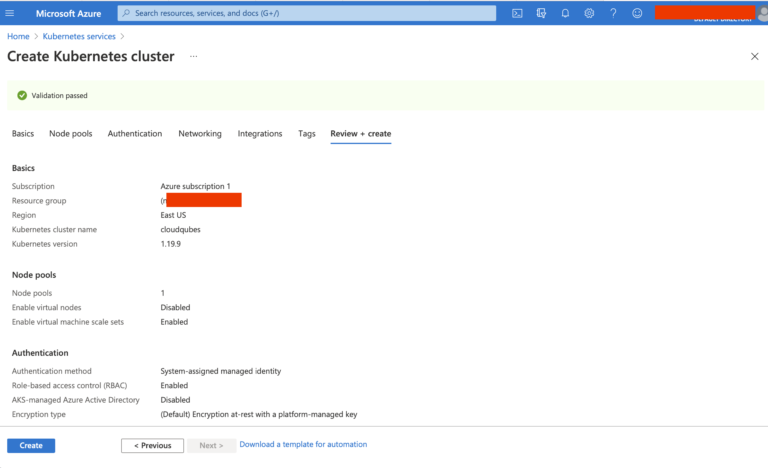
Click on Create button at the bottom of the screen.
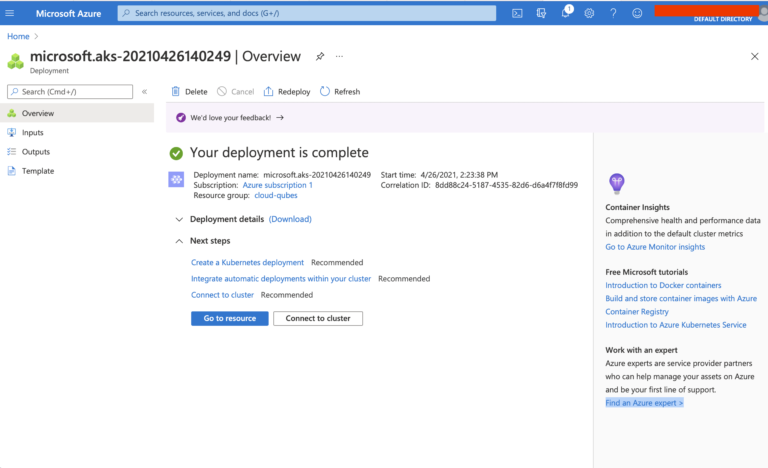
AKS will take about 4-5 minutes to create the cluster. After the cluster is created, you will get a completion notification.
Step 6: Connect Using Cloud Shell
Click on the Cloud Shell icon, right next to the Search bar to connect to the cluster. If it's the first time you are using the Cloud Shell you would be prompted to create a storage, and then you will be presented with a shell.
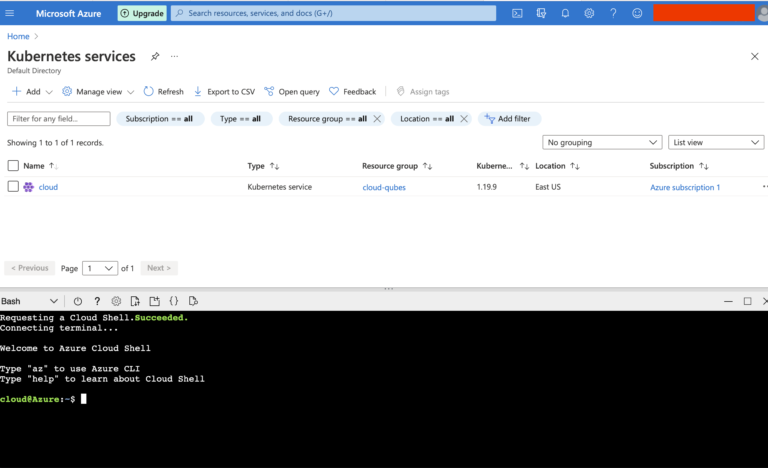
Type in this command with the resource-group and name field values replaced with the appropriate values for your AKS cluster, to sign in to the cluster from Cloud Shell:
$ az aks get-credentials --resource-group cloud-qubes --name cloudqubes
Once signed in, you can use kubectl tool to connect to the cluster and print node information:
$ kubectl get nodes
Conclusion
In this article I have introduced the concepts of AKS and also created one AKS cluster using the web portal. The AKS cluster is ready now for deploying workloads. While I have used the Azure web portal for creating the AKS cluster, you can do the same with Azure CLI as well.